
Greetings! I'm Aneesh Sreedharan, CEO of 2Hats Logic Solutions. At 2Hats Logic Solutions, we are dedicated to providing technical expertise and resolving your concerns in the world of technology. Our blog page serves as a resource where we share insights and experiences, offering valuable perspectives on your queries.

How to Use the Cursor AI
Want a Quick Summary?


Stop fighting the AI. Start steering it.
Cursor is more than autocomplete; it’s an agent that can read your project, edit files, run terminal commands, and review diffs inline. The difference between “it keeps changing the wrong things” and “it shipped the fix in one pass” usually comes down to how you use it, not which model you picked.
This guide reflects current Cursor UI (Agent panel, four modes, @ mentions, rules/skills, diff review, and Cursor 3 features like Agent Tabs and the Agents Window). Screenshots are illustrative; your version may differ slightly.
Cursor AI Best Practices
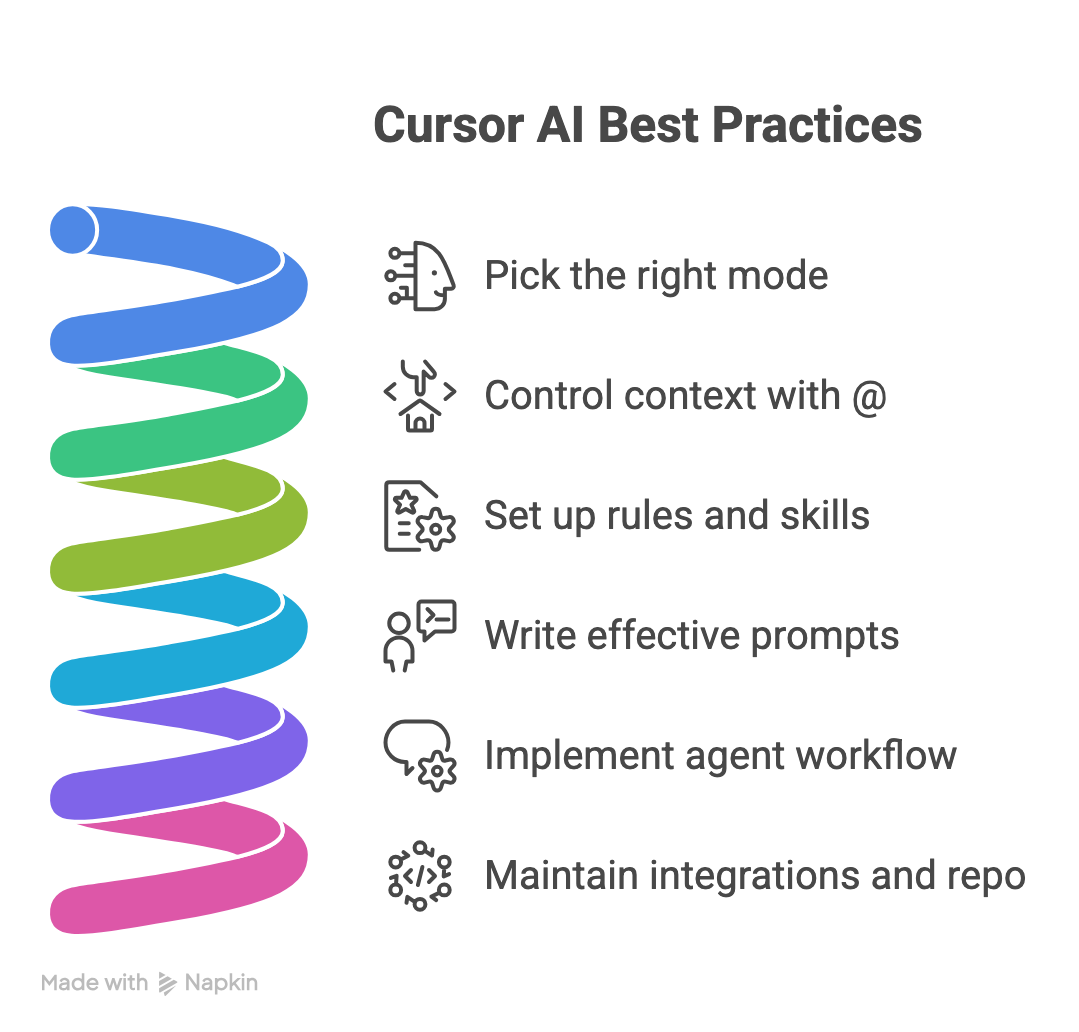
1. Pick the right mode
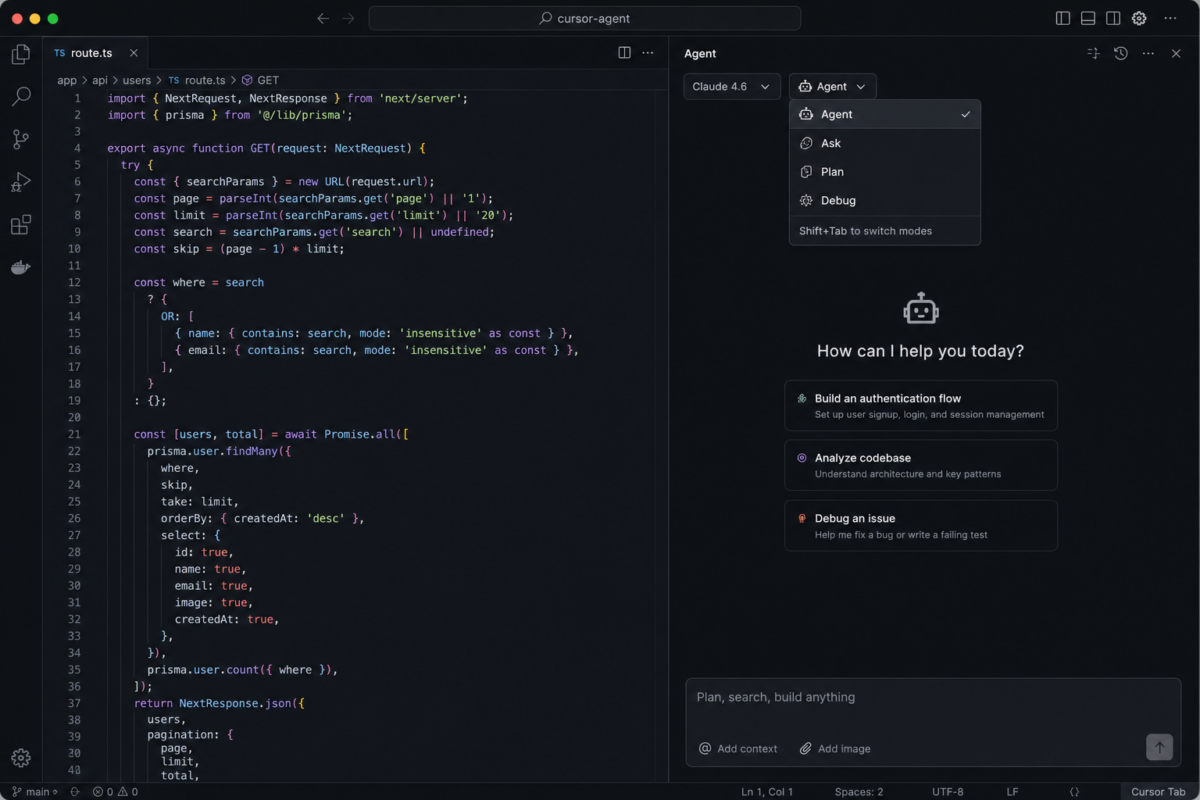
Open the Agent panel (Cmd+I on Mac, Ctrl+I on Windows/Linux), then choose a mode. Each mode changes what the AI is allowed to do.
Cursor Agent panel with mode picker: Agent, Ask, Plan, Debug
Switch modes: click the mode picker in the Agent panel, or press Shift+Tab to cycle through modes.
| Mode | Best for | Edits files? |
| Agent | Building features, refactors, fixes, tests, shell commands | Yes |
| Ask | Understanding code and architecture (read-only) | No |
| Plan | Complex work, you review a Markdown plan before building | Yes, after you approve the plan |
| Debug | Hard bugs using runtime evidence and logging | Yes |
| Mode | Avoid when |
| Ask | You need files changed |
| Plan | Tiny one-line fixes |
| Agent | You only want an explanation |
| Debug | Greenfield scaffolding with no repro |
Rule of thumb: For three or more files or fuzzy requirements → Plan first, then Agent.
Still exploring? Ask before you let anything be edited.
Tip: Each mode uses its own context window. For a new task, start a new chat rather than switching modes mid-thread.
2. Control context with @
Type @ in the chat input to attach context. Cursor shows matching suggestions as you type.
Cursor @ mention menu: Files, Docs, Terminals, Past Chats, Git, Browser
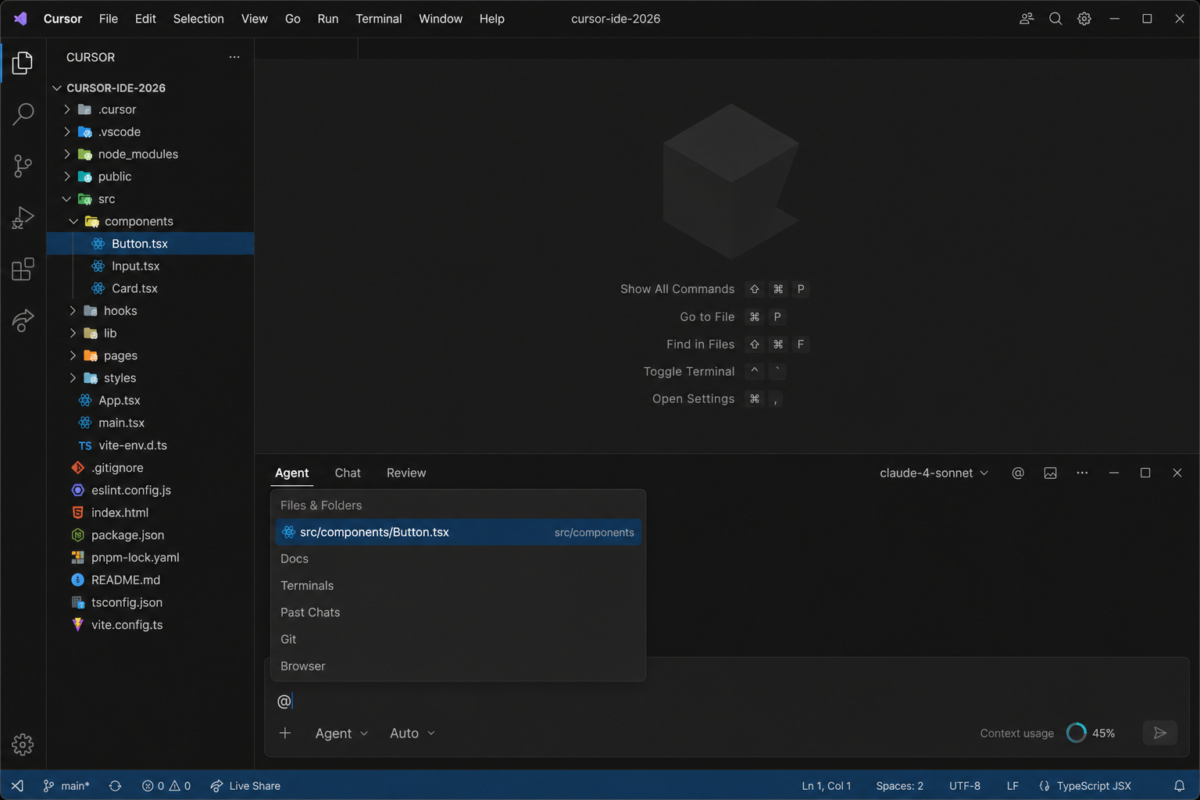
What you can attach (current @ mentions)
| Reference | Use it when |
| Files & folders | You know what to touch, e.g. @auth.ts or @src/components/ (type / after a folder to go deeper) |
| Docs | You need indexed documentation (@Docs, including docs you add yourself) |
| Terminals | Recent terminal output matters |
| Past chats | Prior conversation context is relevant |
| Git | Uncommitted changes (@Commit) or branch diff (@Branch) |
| Browser | Built-in browser context helps (UI/debugging) |
When to skip @: If you’re not sure which files matter, omit it. The agent can search the codebase on its own. Use @ when you already know the right files.
Context usage ring
Next to the input, you’ll see a context ring showing how full the window is. Click it for a breakdown: system prompt, tools, rules, skills, MCP, subagents, and conversation tokens. If the ring fills up, Cursor summarizes older turns to make room.
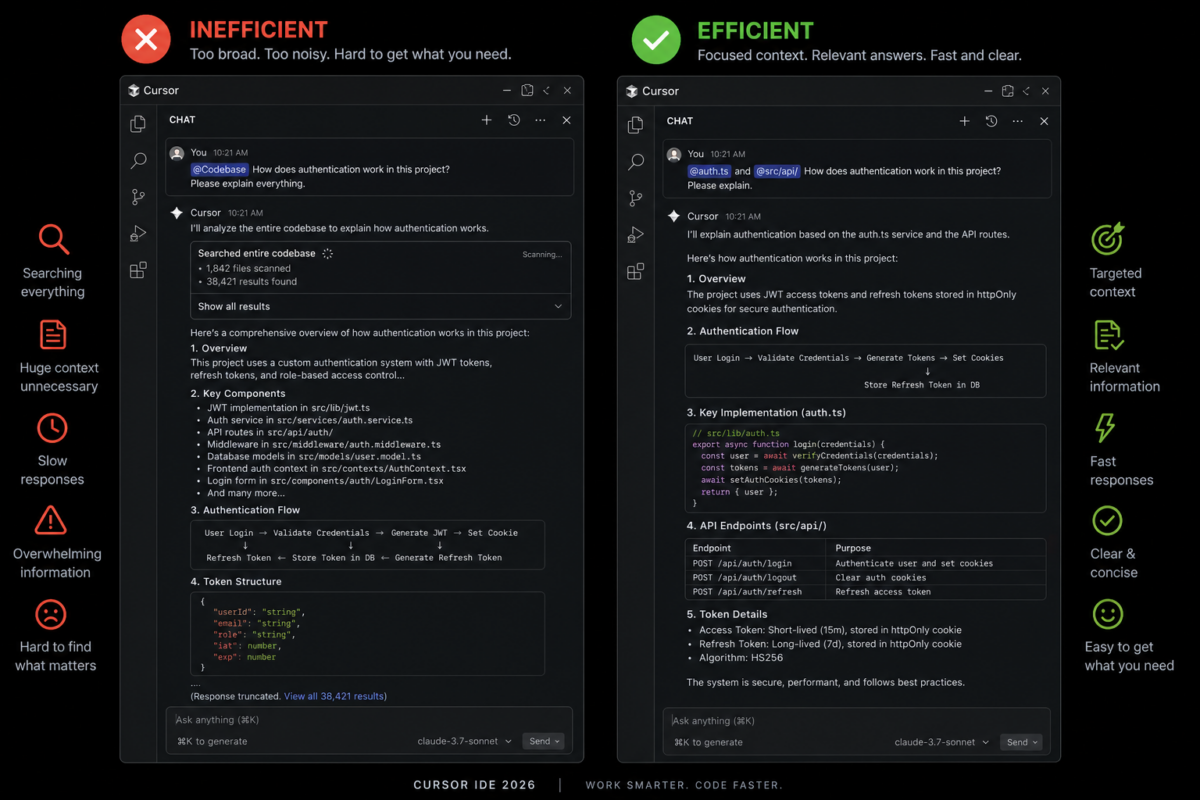
Good vs bad habits
Efficient @file/@folder context vs bloated @Codebase threads
| Do | Don’t |
| Attach the smallest set that answers the question | Dump huge unrelated context in every message |
| One chat per task | Mix unrelated topics in one long thread |
| Use Past Chats or Git when that’s the real context | Re-paste entire logs when @Terminals works |
For a focused bug fix, @file plus one test file beats a vague “search everything” prompt.
3. Rules and skills (set up once)
Repeating “use our API client” or “never commit secrets” in every chat is exhausting. Project rules and skills encode that once, and they apply in all modes (Agent, Ask, Plan, Debug).
.cursor/rules files and Cursor Settings for Rules and Skills
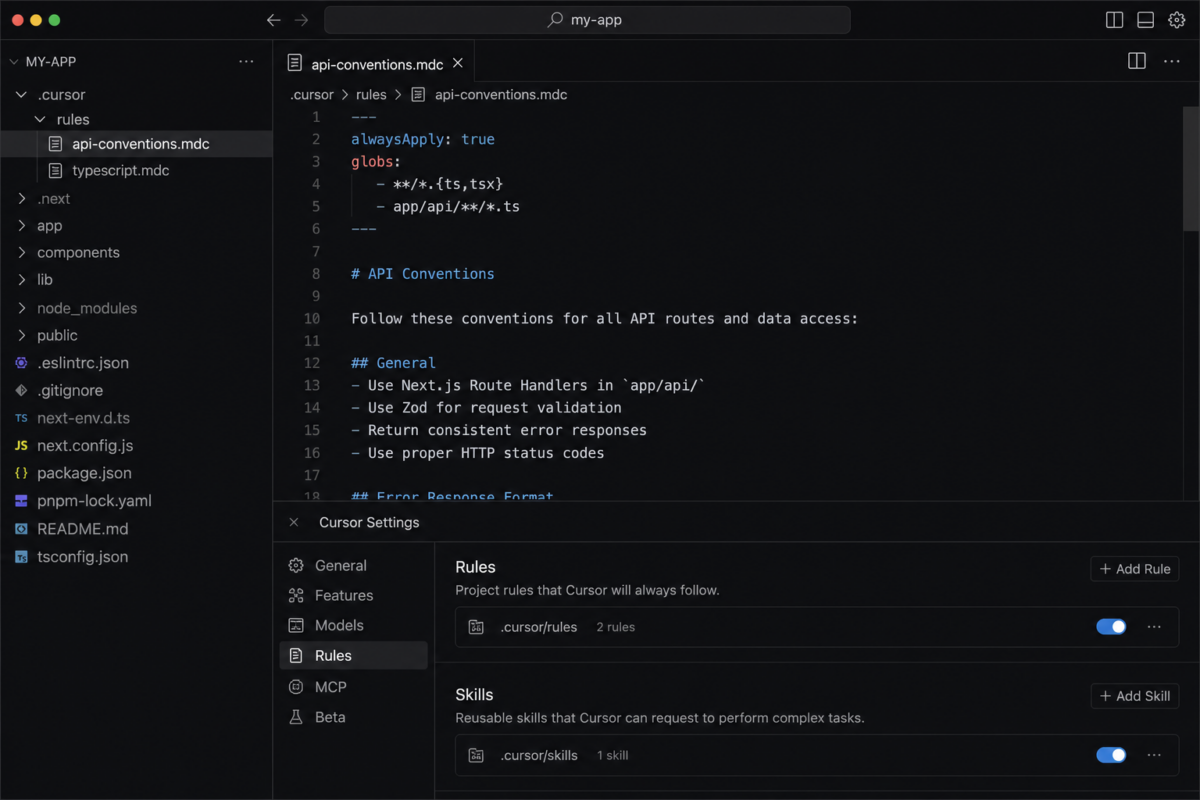
Project rules (.cursor/rules/*.mdc)
—
description: API and error-handling conventions
globs: src/api/**
alwaysApply: false
—
- alwaysApply: true – Stack-wide standards (language, security, style).
- globs – Rules that load only when matching files are in scope (saves tokens).
Legacy .cursorrules still works; scoped .cursor/rules/ scales better for teams.
User rules
Cursor Settings → Rules – personal preferences (tone, git safety, formatting) across all projects.
Agent skills
Skills (~/.cursor/skills/ or .cursor/skills/ in a repo) describe repeatable workflows. They appear in the context breakdown and reduce “please follow our process” in every thread.
Custom subagents
Add markdown files under .cursor/agents/ for specialized subagents (research, shell, browser, etc.).
4. Write prompts that work
Structure non-trivial requests in four parts. Use the chat input like a spec, not a vague wish.
Agent input with Goal, Constraints, Scope, Verification, context ring, and model picker
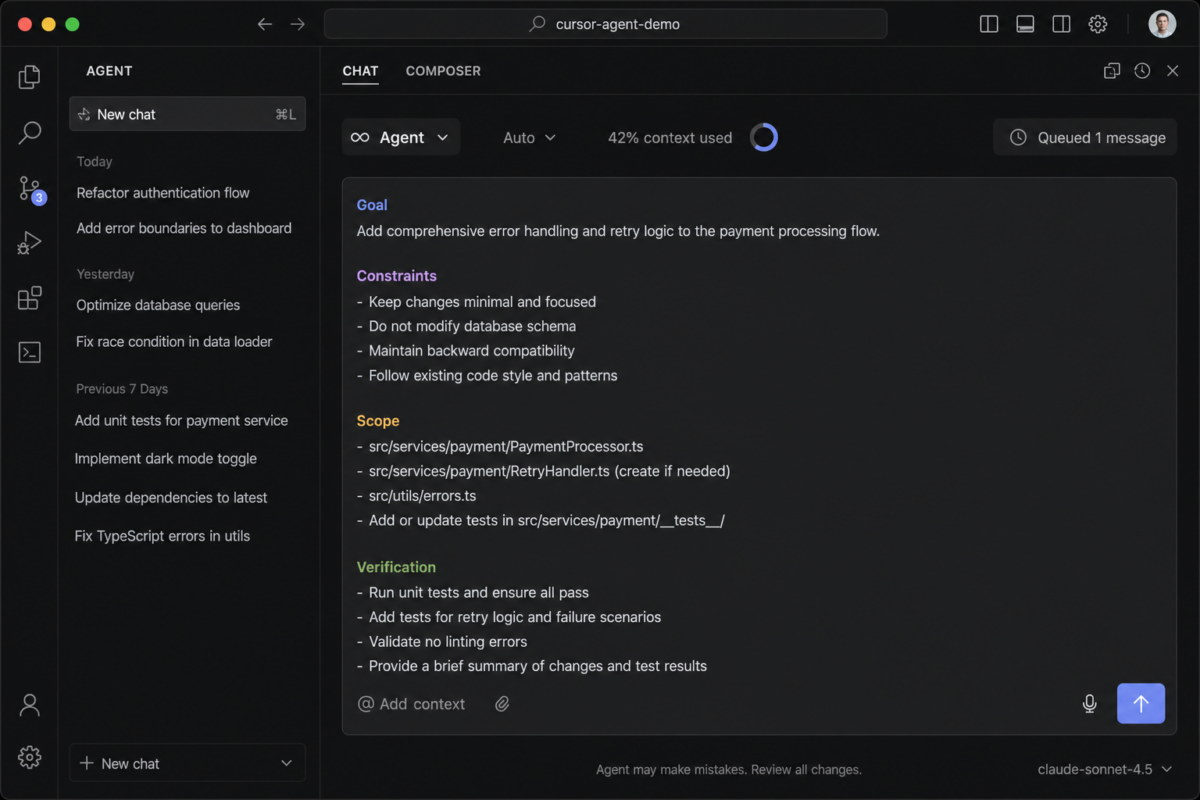
| Section | What to write |
| Goal | What “done” looks like |
| Constraints | Stack, patterns, “don’t change X” |
| Scope | Files or areas in / out (@ paths help) |
| Verification | Tests, lint, manual steps |
Strong example
Goal: Add email validation to the signup form before submission.
Constraints: Use existing Zod schemas in src/schemas/; match React Hook Form patterns in this repo.
Scope: @src/components/SignupForm.tsx and @src/schemas/user.ts only.
Verification: Run npm test and npm run lint; fix until green.
Weak example
Fix the signup bug.
More input options (current UI)
- Voice – microphone icon in the input to dictate prompts.
- Images – drag-drop or Cmd+V for screenshots (UI work, visual bugs).
- Queue messages – submit the next instruction while the Agent runs; reorder the queue if needed.
- Models – model picker in the panel, or Cmd+/ to cycle; switch mid-chat if exploration vs implementation needs differ.
5. Agent workflow
Agent diff review with multi-tab Agent panel
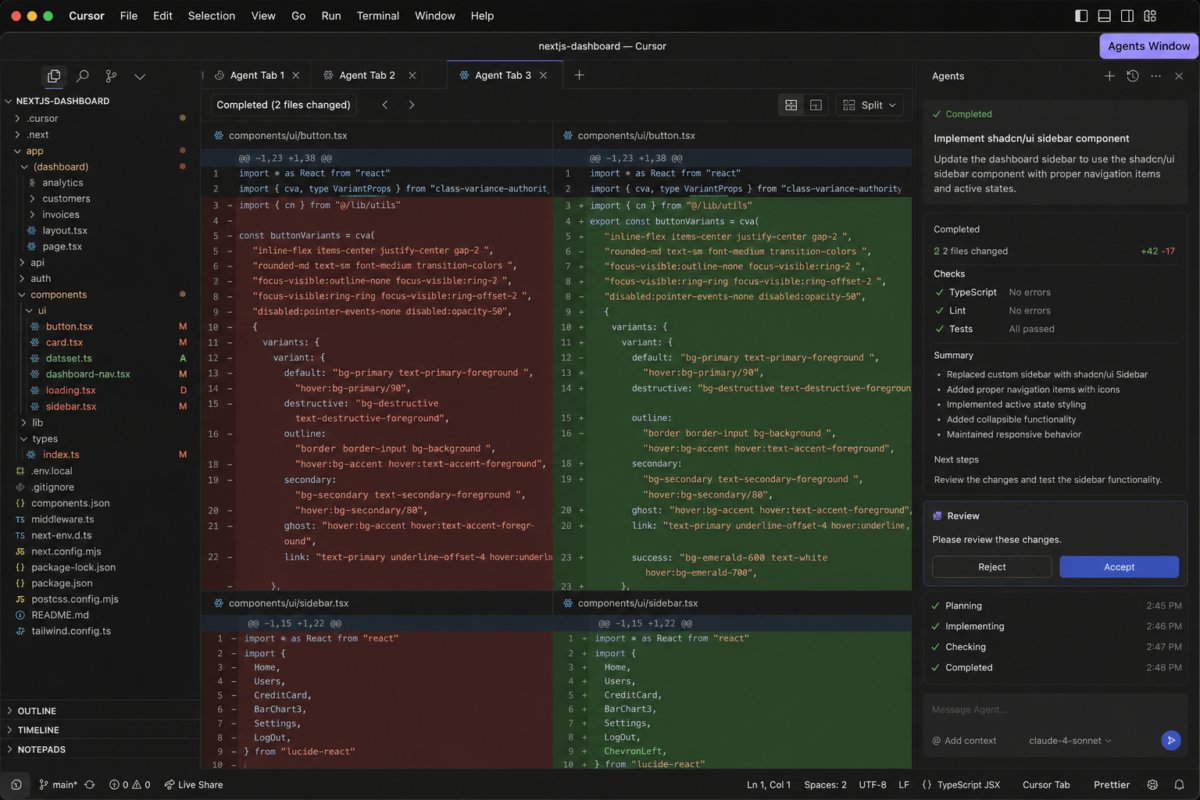
Plan → Agent (default for real features)
- Plan – Agent researches the repo, asks clarifying questions, and produces a Markdown plan (file paths, references). Edit the plan inline, then build.
- Agent – Implements; edits show in the diff view as they land.
- Review – Accept/reject in diff view; don’t trust the summary alone.
- Verify – Ask Agent to run tests/lint; use Restore Checkpoint on a message to roll back if needed.
Debug mode (when Plan/Agent aren’t enough)
Debug mode targets elusive bugs: hypotheses → runtime logging while you reproduce → you verify → Agent removes instrumentation and keeps a minimal fix.
Cursor 3: parallel agents and UI work
- Agents Window – Cmd+Shift+P → “Agents Window”: run agents in parallel (local, worktree, cloud, SSH). Keep the classic IDE open side-by-side if you prefer.
- Agent Tabs – multiple chats side-by-side or in a grid.
- Design Mode (in Agents Window) – annotate UI in the browser (Cmd+Shift+D); point the agent at exact elements (Cmd+L, Option+click).
- Slash commands – e.g.,/worktree for isolated git worktrees, /best-of-n to compare models in parallel.
Use the terminal
Let Agent run npm test, pytest, etc. Use @Terminals to attach output instead of retyping errors.
6. Integrations and repo hygiene
MCP servers
MCP connects external tools (docs, DBs, issue trackers). Enable only what you use. MCP shows up in the context ring and adds overhead. MCP Apps can return richer, structured outputs in recent versions.
Model choice
| Task | Model |
| Quick edits, formatting, and renames | Faster model |
| Architecture, subtle bugs, large refactors | More capable / “thinking” model |
Match the model cost to the task cost.
Help Cursor help you
- .cursorignore – Exclude node_modules, build output, and large assets from indexing.
- Clear structure – Predictable folders (src/, tests/, docs/).
- Types and tests – Verifiable targets for Agent.
- Small PRs – Easier review for you and Bugbot.
Mistakes to avoid
| Mistake | Better approach |
| “Make it better.” | Specific acceptance criteria |
| One thread for twenty topics | New chat per feature |
| Over-attaching random context | Known files via @, or let Agent search |
| No team conventions in rules | .cursor/rules + skills |
| Agent mode for “explain only.” | Ask mode first |
| Trusting the summary, skipping the diff | Review the diff view |
| Skipping verification | “Run X until green.” |
| Switching modes/tasks in one chat | New chat for a new task |
Daily checklist
start[New task] –> scope{Clear scope?}
scope –>|No| plan[Plan mode or Ask]
scope –>|Yes| context[Attach minimal @ context]
plan –> context
context –> mode{Need edits?}
mode –>|No| ask[Ask mode]
mode –>|Yes| agent[Agent mode]
agent –> verify[Run tests and lint]
verify –> review[Review diff]
review –> done[Done or new chat]
- Open Agent (Cmd+I / Ctrl+I). Scope clear? If not → Plan or Ask.
- Attach minimal @ context (or skip if Agent should search).
- Agent (or Debug) to implement.
- Run verification; watch the context ring if replies get shallow.
- Review diff; restore checkpoint if needed.
- New chat for the next feature.
Copy-paste prompt templates
New feature
Goal: [what “done” looks like]
Constraints: [stack, patterns, libraries to use]
Scope: @path/to/main/file – do not change [areas out of scope]
Verification: [test/lint commands]
Bug fix (try Debug mode if repro is hard)
Goal: [expected vs actual behavior]
Repro: [steps]
Error: [paste full stack trace or use @Terminals]
Scope: @suspected/file.ts
Verification: [test command] until passing
Refactor (multi-file)
Goal: [refactor outcome]
Constraints: no behavior change; keep public APIs stable
Scope: @src/module/ — out of scope: @src/legacy/
Use Plan mode first, then Agent. Verification: full test suite
Learn only (no edits)
Explain how [system] works and trace the data flow from [A] to [B].
Use Ask mode. Scope: @relevant/files
Do not modify any files.
Conclusion
Cursor efficiency is mostly process: right mode (Shift+Tab), tight @ context, rules/skills once, structured prompts, diff review, and verification. Models matter, but habits matter more.
If you adopt one thing today: open Agent, pick the right mode, attach only the files you know matter, or let Agent search, and always read the diff.
Want a Quick Summary?

Related Articles