
Greetings! I'm Aneesh Sreedharan, CEO of 2Hats Logic Solutions. At 2Hats Logic Solutions, we are dedicated to providing technical expertise and resolving your concerns in the world of technology. Our blog page serves as a resource where we share insights and experiences, offering valuable perspectives on your queries.

Cross-selling is one of the most effective ways to increase revenue in an e-commerce store, but only when it’s done right.
In Shopware 6, cross-selling allows you to recommend relevant products alongside what your customers are already viewing or purchasing. This not only improves the shopping experience but also increases the average order value (AOV).
However, many stores either underuse this feature or apply it without a clear strategy.
In this guide, you’ll learn how to set up cross-selling in Shopware 6, along with practical strategies, examples, and best practices to turn product recommendations into real conversions.
Shopware 6 Cross-selling
Shopware 6 cross-selling is the practice of recommending additional, complementary products to customers based on what they are currently viewing or adding to their cart. The goal is to enhance the shopping experience while increasing the total order value.
Cross-Selling vs. Upselling: What’s the Difference?
| Feature | Cross-Selling | Upselling |
| Goal | Recommend related products | Encourage higher-value purchase |
| Example | Shoes → Socks | Basic phone → Premium phone |
| Focus | Complementary items | Better version of same item |
Why Cross-Selling Matters for Your Shopware Store
Shopware 6 cross-selling is more than just showing additional products; it’s about guiding customers toward a more complete purchase. When done right, it directly impacts revenue, user experience, and overall store performance.
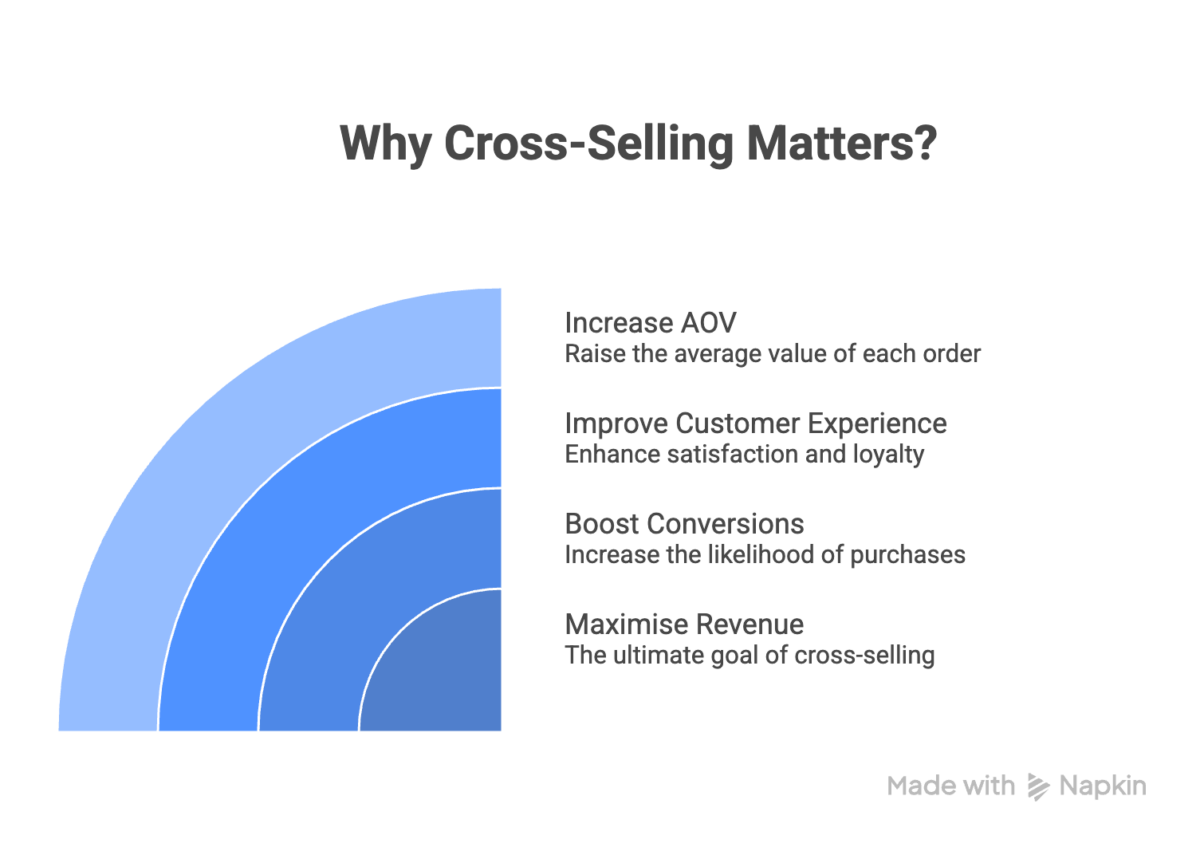
Increase Average Order Value (AOV)
Cross-selling encourages customers to add complementary products to their cart, increasing the total order value without requiring additional traffic. For example, suggesting accessories or add-ons at the right moment can significantly improve the revenue per customer.
Improve Customer Experience
Instead of making customers search for related items, cross-selling helps them discover useful products instantly. This creates a smoother shopping journey and makes the store feel more intuitive and helpful.
Boost Conversions
Well-placed product recommendations reduce decision friction. When customers see relevant suggestions at the right time, such as on product or cart pages, they are more likely to complete the purchase.
Maximise Revenue from Existing Traffic
Acquiring new customers is expensive. Cross-selling helps you generate more value from the traffic you already have by increasing the basket size of each transaction.
Looking to improve product recommendations in your Shopware 6 store?
Real Examples of Cross-Selling in Ecommerce
Cross-selling works best when product recommendations feel natural and relevant to the customer’s intent. Instead of random suggestions, successful stores use combinations that genuinely enhance the purchase.
Fashion Store
A customer viewing a shirt is shown matching pants, shoes, or accessories. This helps customers complete an entire outfit in one go, increasing both convenience and order value.
Electronics Store
When purchasing a laptop, customers see recommendations like a mouse, a laptop bag, or an extended warranty. These add-ons are often essential, making the buying decision easier while increasing the total cart value.
Food & Grocery Store
Adding bread to the cart can trigger suggestions like butter, jam, or spreads. These are frequently bought together, making the recommendations feel intuitive rather than promotional.
What Makes These Examples Effective?
- The products are contextually relevant
- They align with customer intent at that moment
- They reduce the need for additional searching
In Shopware 6, using dynamic product groups can help automate these kinds of intelligent recommendations at scale.
Types of Shopware 6 Cross-selling
For cross-selling with Shopware 6, you have two main strategies:
Manual Cross-Selling with Shopware 6
Manual cross-selling allows you to handpick and assign specific products to recommend alongside a main product.
Best for:
- Small to medium product catalogs
- Stores that need precise control over recommendations
- Highlighting curated bundles or premium combinations
Example:
Pairing a specific shoe with a matching belt and wallet set.
Dynamic Cross-Selling with Shopware 6
In dynamic cross-selling, recommendations are generated automatically based on product attributes.
Includes:
- Similar items
- Category-based products
- Rule-based suggestions
Best for:
- Large catalogs
- Automation and scalability
Step-by-Step Guide to Setting Up Cross-Selling with Shopware 6
In Shopware 6, you have two strategies: manual and dynamic.
Types of Cross-Selling with Shopware 6
Manual Cross-Selling: In the manual, you can select specific products to suggest manually.
Dynamic Cross-Selling: In dynamic mode, you can automatically generate recommendations based on product attributes. This includes:
Similar Items: Products with similar attributes.
1. Setting Up Manual Cross-Selling
Step 1: Login
Firstly, access your Shopware backend.
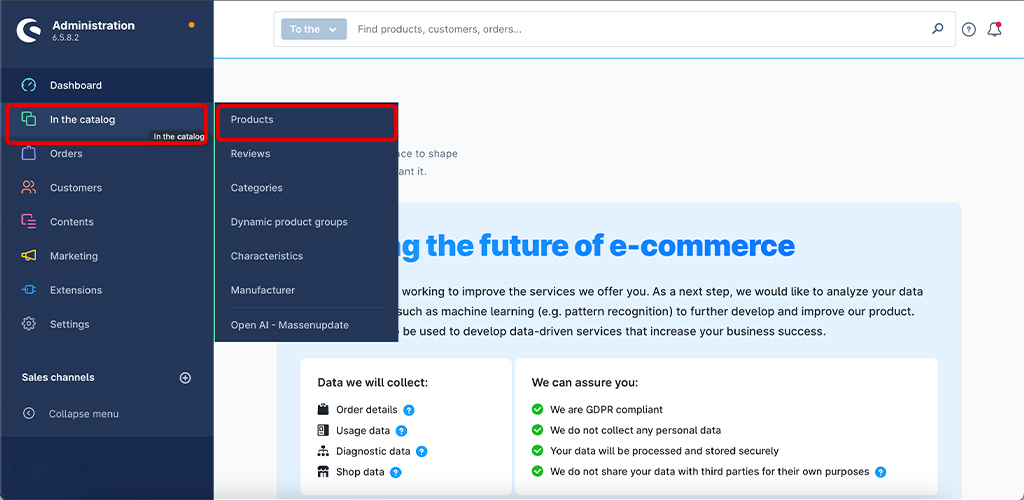
Step 2: Navigate to Product. Go to the product you want to configure for cross-selling.
Step 3: Open the Cross-Selling Tab. Find and click the “Cross-selling” tab.
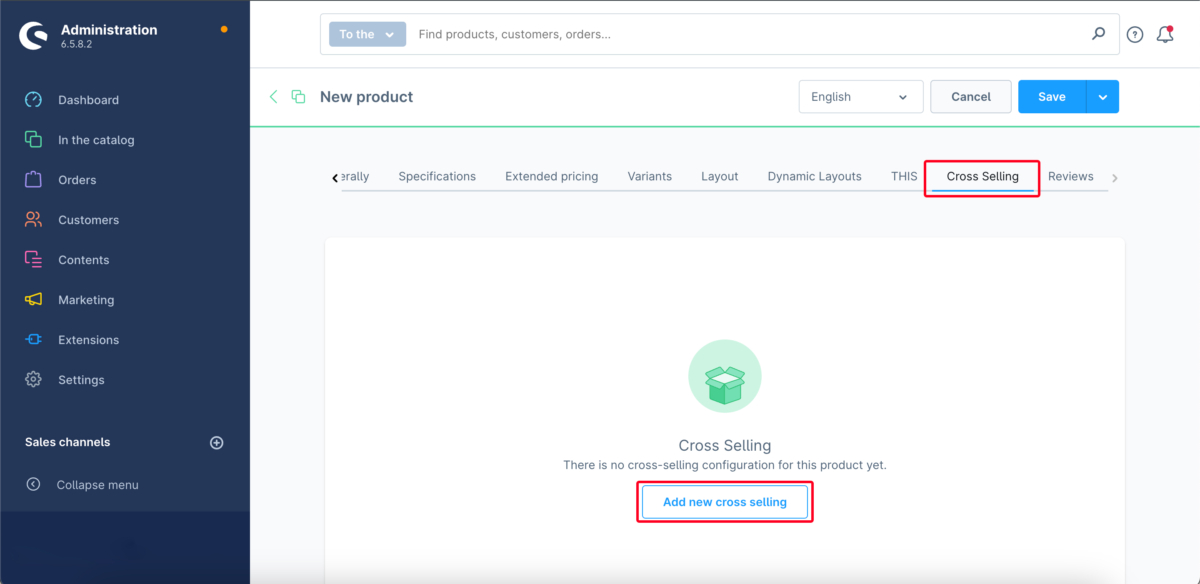
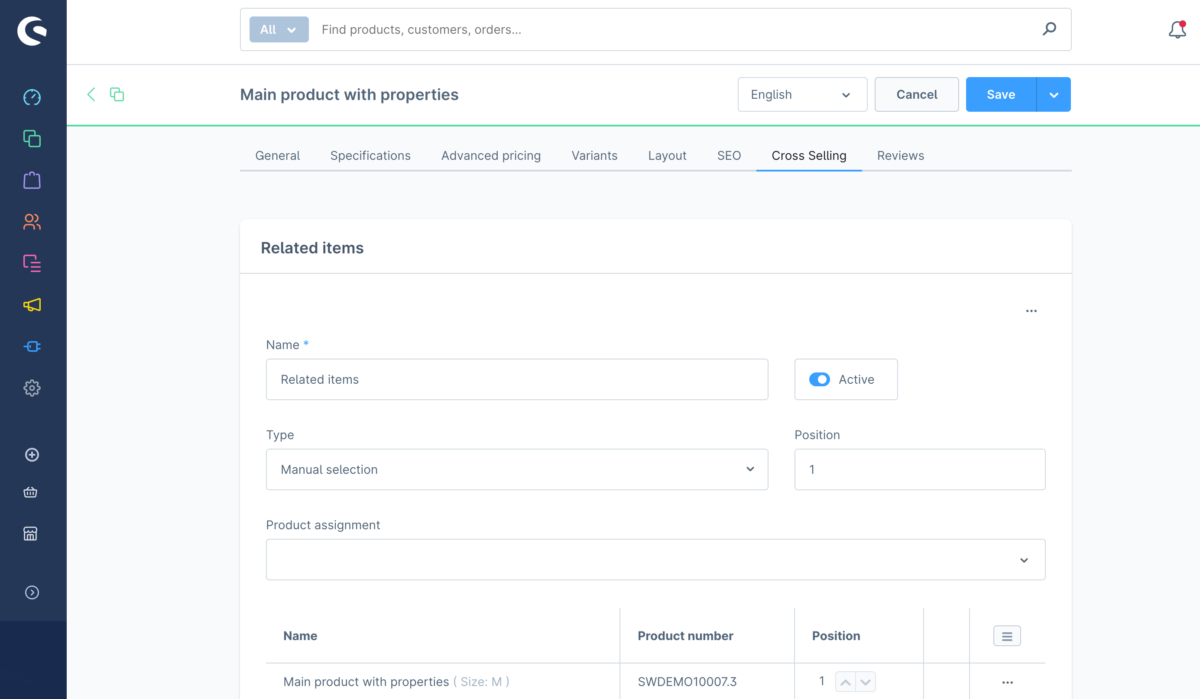
Step 4: Then you can Add New Cross-Selling:
- Click on the Add New Cross-Selling tab.
- Name your cross-selling (e.g., “Accessories”).
- Select Manual Assignment.
- Configure the display position of the cross-selling block.
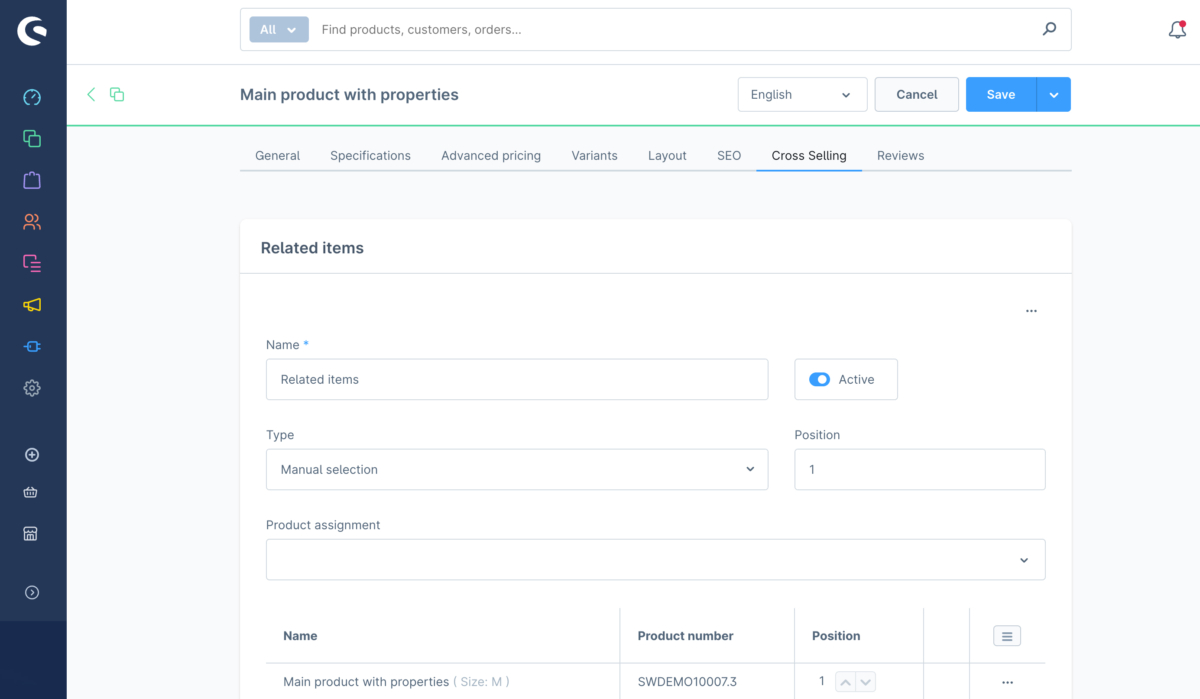
Step 5: Select Products
- Manually choose the products to suggest.
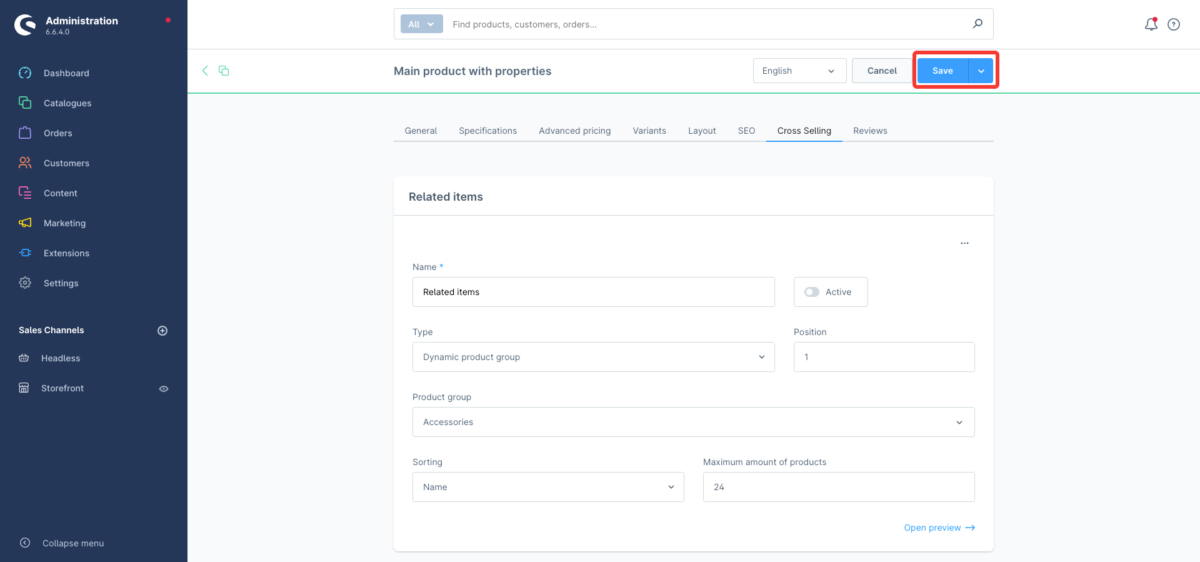
Step 6: Save Changes
Click “Save” to apply the configuration.
2. Setting Up Dynamic Cross-Selling
Step 1: Ensure Product Data Accuracy
- Verify that product attributes (e.g., category, brand, price) are accurate and consistent.
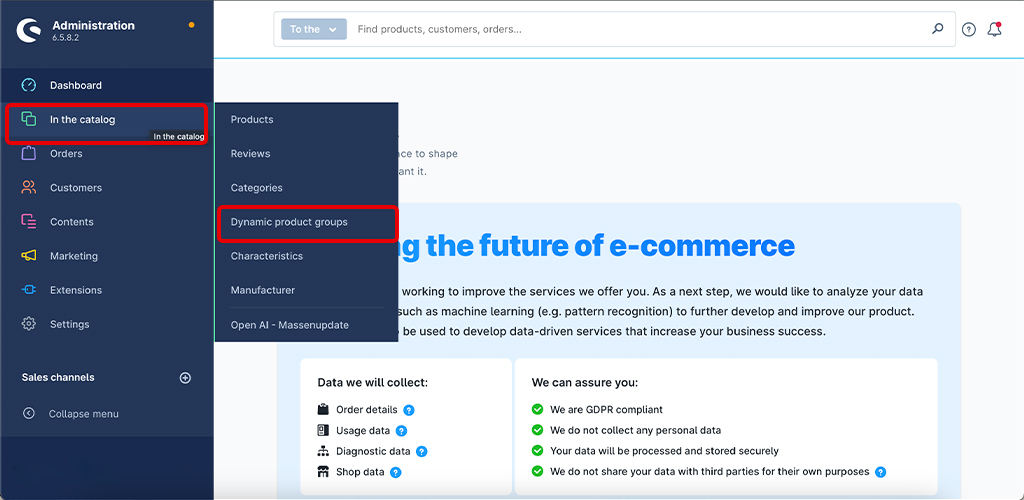
Step 2: Access Dynamic Groups
- Go to Catalogues > Dynamic Product Groups.
Step 3: Create a Dynamic Group
- Click the context menu (three ellipses) and select Add new dynamic group.
- Define your criteria (e.g., price range, stock).
- Name the group and add a description.
- Set the maximum number of products if needed.

Step 4: Save and Preview:
- Review the products included in the group.
- Adjust conditions as necessary.
Best Practices for Effective Cross-Selling
Setting up cross-selling in Shopware 6 is only the first step. To actually increase conversions and revenue, you need to apply it strategically. Here are some proven best practices to follow:
Keep Recommendations Highly Relevant
The success of cross-selling depends on how relevant your suggestions are. Irrelevant products can confuse users and reduce trust.
Focus on:
- Complementary products (not random items)
- Frequently bought-together combinations
- Customer intent at that stage
Place Cross-Selling in the Right Locations
Where you show recommendations matters as much as what you show.
High-performing placements include:
- Product detail pages (PDP)
- Cart page
- Checkout stage
Each stage serves a purpose, discovery, reinforcement, and final push.
Don’t Overload with Too Many Options
Showing too many recommendations can overwhelm customers and reduce clarity in decision-making.
Best practice:
- Limit to 3–5 products per section
- Prioritise quality over quantity
Use Dynamic Groups for Scalability
For stores with large catalogs, manual cross-selling becomes difficult to maintain.
Use dynamic product groups to:
- Automate recommendations
- Keep suggestions updated
- Scale across hundreds of products
Align Cross-Selling with Customer Intent
Not all customers are at the same stage of decision-making.
Example:
- Product page → show complementary items
- Cart page → show add-ons or upgrades
Matching intent increases the chances of conversion.
Regularly Review and Update Recommendations
Customer behavior and trends change over time.
Make it a habit to:
- Review performance
- Update rules and product pairings
- Remove low-performing combinations
Combine Manual and Dynamic Strategies
Relying on just one approach can limit results.
Best approach:
- Use manual cross-selling for key products
- Use dynamic cross-selling for scalability
This gives you both control and efficiency.
Managing Cross-Selling for Large Product Catalogs
For stores with hundreds or thousands of products:
- Use dynamic product groups for automation
- Regularly update rules based on trends
- Ensure product data consistency
Customising Cross-Selling Features in Shopware 6
Shopware 6 offers strong default features, but you can go further:
Utilise Existing Plugins
Explore plugins in the Shopware store to extend functionality without heavy development.
Custom Development
For advanced requirements:
- Custom
- Third-party integrations
- Unique UX
If you need tailored solutions, working with experienced developers can help implement advanced cross-selling strategies effectively.
Common Mistakes to Avoid
Even though cross-selling is a powerful feature in Shopware 6, poor implementation can reduce its effectiveness or even hurt conversions. Here are some common mistakes to watch out for:
Showing Irrelevant Product Suggestions
Recommending unrelated products can confuse customers and make your store feel less trustworthy.
Instead:
- Focus on complementary or frequently bought-together items
- Align recommendations with the product context
Adding Too Many Recommendations
Overloading users with too many options can lead to decision fatigue and reduce the likelihood of a purchase.
Instead:
- Limit suggestions to a small, focused set (3–5 products)
- Highlight the most relevant options
Not Updating Cross-Selling Rules
Customer preferences, trends, and inventory change over time. Static recommendations can quickly become outdated.
Instead:
- Regularly review performance
- Update dynamic rules and product pairings
Ignoring Product Data Quality
Dynamic cross-selling relies heavily on accurate product data. Poorly structured or inconsistent data leads to irrelevant recommendations.
Instead:
- Maintain clean and consistent product attributes
- Regularly audit your catalog
Customising Cross-Selling Features in Shopware 6
Shopware 6 for e-commerce stores offers robust default options, but sometimes your business needs to go beyond what’s readily available. Whether you’re looking to customize the experience to better match your brand or want to implement advanced functionality, there are two main approaches:
- Utilise Existing Shopware Plugins
You can access a variety of plugins in the Shopware store designed especially for cross-selling features. With these plugins, you can easily add new features or modify existing ones without extensive development work.
- Custom Development
Custom development is the best option if your requirements are unique or if existing plugins don’t meet your needs. Our Shopware plugin development services can create tailor-made solutions to fit your specific needs. Whether you want to add complex logic, integrate with third-party systems, or craft a unique user experience, you can contact us. The expert Shopware team is here to help.
Get to know how to implement the right approach
Conclusion
In this guide, we have explored the process of setting up cross-selling with Shopware 6, a way to boost sales. For your sales approach and to provide your customers with better solutions, you can improve your actions by following the best practices and utilizing the further improvements of Shopware 6. For tailored advice and implementation, consider exploring our Shopware development services. Together, we can upgrade your cross-selling efforts and drive your business forward.
FAQ
What is Shopware 6 cross-selling?
Shopware 6 cross-selling is a feature that allows you to recommend related or complementary products on product pages, cart pages, or checkout. It helps increase the average order value by encouraging customers to purchase additional items.
How does Shopware 6 cross-selling increase sales?
Shopware 6 cross-selling increases sales by showing relevant product recommendations that match customer intent. When customers see useful add-ons, they are more likely to buy more items, which improves overall revenue and conversion rates.
What are the best practices for Shopware 6 cross-selling?
Best practices for Shopware 6 cross-selling include showing relevant products, limiting the number of recommendations, using customer behavior data, and placing cross-sell items strategically for better visibility and conversions.
What are some examples of Shopware 6 cross-selling?
Examples of Shopware 6 cross-selling include recommending a phone case with a smartphone, a bag with a laptop, or accessories with electronic products. These suggestions help customers find useful add-ons easily.
Table of contents
- Shopware 6 Cross-selling
- Cross-Selling vs. Upselling: What’s the Difference?
- Why Cross-Selling Matters for Your Shopware Store
- Real Examples of Cross-Selling in Ecommerce
- Types of Shopware 6 Cross-selling
- Best Practices for Effective Cross-Selling
- Managing Cross-Selling for Large Product Catalogs
- Customising Cross-Selling Features in Shopware 6
- Common Mistakes to Avoid
- Customising Cross-Selling Features in Shopware 6
- Conclusion


Related Articles