
Greetings! I'm Aneesh Sreedharan, CEO of 2Hats Logic Solutions. At 2Hats Logic Solutions, we are dedicated to providing technical expertise and resolving your concerns in the world of technology. Our blog page serves as a resource where we share insights and experiences, offering valuable perspectives on your queries.

You’ve been running Dynamics NAV for years.
It’s familiar. It’s stable. Your team knows where everything lives. And for a long time, it did exactly what you needed.
But lately… It’s been taking more effort to keep things running.
Maybe your IT team is constantly babysitting customizations. Maybe you’re seeing more “workarounds” than workflows. Or maybe Microsoft’s support timelines have forced the conversation internally.
Whatever the trigger is, this is the truth most NAV users reach eventually:
A NAV to Business Central migration isn’t just an upgrade. It’s a chance to stop maintaining an old ERP and start using one that moves with your business.
And the best part? With the right plan, the migration doesn’t need to be scary or disruptive.
In this guide, we’ll walk through the full Dynamics NAV to Business Central migration process, from figuring out what you’re working with today to post-go-live support: so you can move forward without surprises.
Why Staying on Dynamics NAV Gets Expensive
Let’s be direct: NAV isn’t getting better from here.
Microsoft has moved innovation to Business Central. NAV’s older versions gradually lose support coverage, which means fewer patches, fewer updates, and more exposure, especially around security and compliance.
Here’s what “staying on NAV” often looks like in real life:
- More security and vulnerability risk over time
- More compliance pressure as regulations evolve
- More manual effort (because automation lives in BC now)
- More server + infrastructure costs (and fewer people who want to maintain it)
- Less access to modern tooling like Power BI, Teams, Outlook, and Copilot
Multiple Forrester Total Economic Impact studies commissioned by Microsoft have found that companies migrating from on-premises ERP to Business Central consistently achieved ROI between 162–172%, with payback in under a year.
NAV vs. Business Central: What’s Different?
Business Central is the next evolution of NAV, but it’s built for how businesses run today: cloud-first, connected, and continuously updated.
Here’s the simple comparison:
| Dynamics NAV | Dynamics 365 Business Central |
| On-premises (typically) | Cloud-first (SaaS), with on-prem option |
| Updates are manual and disruptive. | Microsoft-managed updates (twice yearly) |
| No native AI | Copilot + AI insights (depending on licensing/region/features) |
| Limited Microsoft 365 integration | Strong integration with Teams, Outlook, Excel, and Power BI |
| C/AL customizations | AL extensions + AppSource ecosystem |
| Scaling needs hardware planning. | Scale via Azure cloud |
Not sure where you stand?
How to Migrate from NAV to Business Central (Step-by-Step)
Here’s the 10-step migration approach we use at 2HatsLogic, refined across projects for manufacturers, distributors, and service businesses.
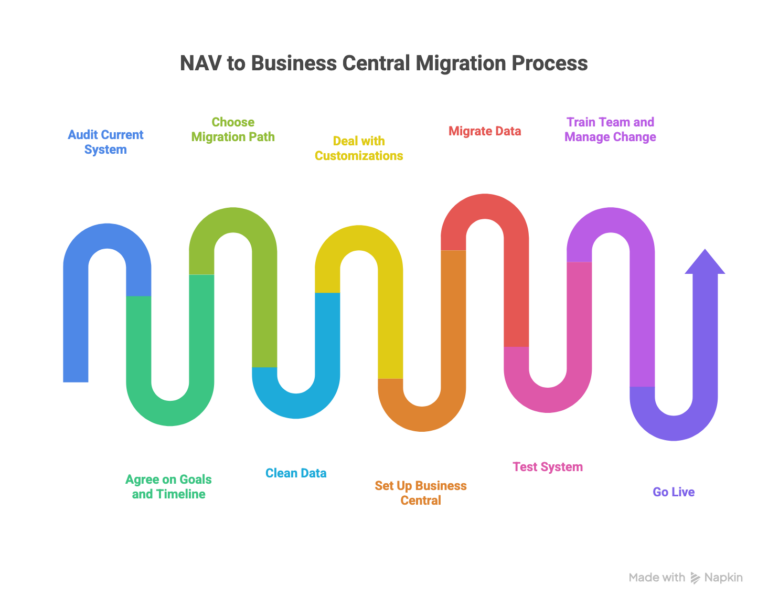
Step 1: Audit What You’re Running Today (Version, Customizations, Integrations)
Before we talk timelines or tools, we need a clear picture of your current NAV setup.
That audit usually includes:
- NAV version (2013/2015/2016/2017/2018, etc.)
- Modules in use (finance, inventory, manufacturing, service, etc.)
- Third-party add-ons (EDI, shipping, reporting tools, banking connectors, etc.)
- Custom objects + modified base objects
- Data volume and history (and what must be kept)
- Current pain points (performance, reporting delays, manual reconciliations)
This step prevents the classic “surprise halfway through the project” that blows up budget and timelines.
Important: If you’re on NAV 2013/2015/2016, you usually can’t jump straight to the latest BC. You’ll likely need an intermediate step (often BC14) depending on your environment. That adds time and cost, so it’s best to know early.
Step 2: Define Your Migration Goals and Build a Timeline
A migration only goes smoothly when everythings’s aligned on what success looks like.
Bring together IT + business stakeholders (finance, operations, warehouse, and leadership) and answer:
- What improvements do we want to see after the go-live?
- What’s our realistic budget, and the cost of staying on NAV?
- What downtime is acceptable?
- Should we go live all at once or in phases?
For most mid-sized businesses, 3-6 months is typical, depending on complexity.
A practical timeline often looks like this:
| Phase | What happens |
| Discovery & Scoping | Audit, goals, plan |
| Customization Conversion | C/AL → AL, integration review |
| Data Preparation | Clean, map, validate |
| Setup & Testing | Sandbox, UAT, parallel run |
| Training & Go-Live | Training + stabilization |
Tip: Don’t schedule go-live during month-end, quarter-end, or peak shipping season. Give your team breathing room.
Step 3: Choose the Right Migration Path (Cloud, On-Prem, or Hybrid)
There’s no one-size-fits-all NAV to Business Central migration. Most projects fall into one of these:
- Business Central Online (SaaS): Best when you want automatic updates and modern capabilities (and when customizations are manageable).
- Business Central On-Premises: Best for strict data residency, regulatory constraints, or highly controlled infrastructure.
- Hybrid / Intelligent Cloud Replication: If you’re on NAV 2018 R2+ (and eligible), you can replicate data into BC online first to validate and explore before cutover.
One warning worth repeating: Trying to “lift and shift” heavy NAV customizations without reassessing them is a common reason projects run long and cost more than expected. Migration is the moment to simplify, not carry every legacy process forward.
Step 4: Clean Your Data
Most ERP go-live issues aren’t caused by the ERP. They’re caused by data.
Before migrating anything, decide:
What you’ll move
- Master data (customers, vendors, items, COA)
- Open transactions (orders, invoices, POs)
- Open balances (AR/AP/banks)
- History (as needed for audit/compliance)
What you’ll clean
- Duplicates and outdated records
- Unreconciled balances
- Inconsistent item/unit setups
- Old transactions that should be archived instead
Tip: Configuration Packages (RapidStart) are still one of the easiest ways to export/import structured data via Excel, great for spotting mapping problems early.
Step 5: Deal With Customizations the Smart Way
NAV customizations were built in C/AL and often modified base objects directly. Business Central runs on AL extensions, which are cleaner, modular, and upgrade-friendly.
What we typically do here:
- Convert C/AL objects/codeunits → AL extensions
- Upgrade V1 extensions → V2 extensions
- Review third-party add-ons (replace with AppSource apps where possible)
- Validate integrations (APIs, file exchange, reporting, automation)
And here’s the thing many teams find surprising:
A lot of NAV customizations exist because NAV didn’t have standard features that BC now includes.
It’s common to eliminate 30-40% of custom code simply by using standard BC functionality.
Big gotcha to plan for: Business Central SaaS can’t read/write to local network drives. Any NAV integration that depends on network folders (document storage, EDI drops, exports) needs redesign before go-live.
Step 6: Set Up Your Business Central Environment
You’ll typically set up:
- A sandbox (where we configure and test safely)
- Production tenant
- Users, roles, permission sets (usually need rework vs NAV)
- Security groups
- Microsoft 365 connections (Teams/Outlook/SharePoint/Power BI)
- Extensions from AppSource
Tip: Permission issues are one of the top go-live day problems. Test roles and permissions thoroughly in the sandbox.
Step 7: Migrate Data
Depending on your setup, tools may include:
- Configuration Packages (RapidStart) for master data and structured imports
- Intelligent Cloud Migration for replication/validation (eligible versions)
- Azure Data Factory for more complex transformation at scale
After each migration run, validate:
- AR/AP balances match NAV exactly
- Inventory quantities and valuation align
- Open orders match counts and totals
- COA structure and posting setup are correct.
- Historical transactions are accessible and correctly dated.
Watch out: Product group naming/duplicates can change during migration and quietly break reporting. If you use Jet Reports or Power BI formulas tied to names, audit this early.
Step 8: Test Like a Real Business
If testing feels “slow,” you’re probably doing it right.
You’ll want:
- End-to-end scenarios (order to cash, procure to pay, inventory, manufacturing if relevant)
- UAT with real users (warehouse, finance, operations, and not just IT)
- Parallel run for 2–4 weeks when risk is higher
Training and testing overlap: users who test early feel confident at go-live.
Step 9: Train Your Team and Manage the Change
Your team knows NAV muscle memory. BC will feel different, even if it’s better.
A training plan that works:
- Role-based sessions (finance ≠ warehouse ≠ purchasing)
- Hands-on sandbox training (not just slides)
- Quick reference guides and short videos
- Department “super users”
- Strong support coverage for the first 30 days
Heads-up: NAV personalized layouts/views won’t transfer. Give power users time to rebuild layouts in the sandbox before going live.
Step 10: Go Live
Go-live is the start, not the end.
First 48 hours:
- Confirm users/permissions
- Run real transactions and validate outputs
- Confirm integrations are working.
- Monitor performance and errors
- Keep support close.
First 90 days:
- Weekly check-ins with department leads
- Optimize role centers and dashboards
- Start using what you couldn’t do in NAV (Power BI, Automate, and Copilot where applicable).
- Prepare for BC’s update cadence (and how you’ll manage changes).
A simple but powerful move: create a “BC wishlist” from user feedback and turn that momentum into continuous improvement.
What a Successful NAV to Business Central Migration Looks Like (Real-World Snapshot)
A global manufacturer outgrew NAV due to multi-entity complexity and manual reporting across regions. After migrating to Business Central (finance + trade/logistics + manufacturing), they saw:
- Access to live data from anywhere
- Consolidated reporting across business units
- Improved operational capacity
- Faster onboarding (hours instead of days)
Conclusion
A NAV to Business Central migration is a big decision. But done properly, it’s one of the highest-leverage upgrades a growing business can make.
You’re not just switching software. You’re getting:
- an ERP that updates itself,
- integrates with tools your team already uses,
- supports modern reporting and automation,
- and scales with you instead of holding you back.
If you want a clear plan, a realistic timeline, and no surprises, our team at 2HatsLogic can help.
FAQ
Will we lose customizations during the NAV to Business Central migration?
Not automatically. Some get converted, some are replaced by standard BC features, and some are best rebuilt in a cleaner way.
Can we do NAV to Business Central migration in phases?
Yes, and for many orgs, it’s the safer approach (finance first, then ops/warehouse, then manufacturing, etc.).
What if we’re on NAV 2013/2015/2016?
Plan for an intermediate step (often BC14 or a staged upgrade path). This is exactly why Step 1 matters.
Can we do the NAV to Business Central migration without a partner?
Possible for simple setups. Most businesses bring in a partner because the biggest risks are customizations, integrations, and data validation.


Related Articles