
Greetings! I'm Aneesh Sreedharan, CEO of 2Hats Logic Solutions. At 2Hats Logic Solutions, we are dedicated to providing technical expertise and resolving your concerns in the world of technology. Our blog page serves as a resource where we share insights and experiences, offering valuable perspectives on your queries.

Managing hundreds of email orders daily through manual data entry isn’t tedious; it’s costing your business time, money, and accuracy. For small and medium-sized businesses using Dynamics 365 Business Central, the manual process of copying customer details, product SKUs, and quantities from emails into your ERP system creates bottlenecks that slow down your entire operation.
E-mail remains the primary communication channel for B2B orders, with wholesale distributors and manufacturers receiving anywhere from 50 to 500+ orders daily. Each manual entry takes 3-5 minutes, translating to hours of repetitive work and inevitable human errors. Automation transforms this workflow by instantly parsing email content and creating sales orders in Business Central without human intervention.
Why Automation Matters for B2B Teams
Immediate operational gains include:
- Eliminating data entry errors from misread information or typos
- Processing orders 24/7 without staffing constraints
- Scaling order volume without proportional hiring
- Reducing order-to-fulfillment cycle time by hours or days
- Freeing staff to focus on customer relationships and complex orders
Financial impact spans:
- Cutting labor costs associated with manual order entry
- Reducing order errors that lead to returns and credits
- Improving cash flow through faster order processing
- Increasing customer satisfaction with rapid response times
Microsoft provides two primary paths for automating email orders into Business Central: Power Automate offers customizable workflows that connect Outlook directly to Business Central’s API, while the AI Sales Order Agent leverages artificial intelligence to intelligently parse unstructured emails and handle format variations.
Warning: Manual email order processing typically achieves only 92-95% accuracy rates. For high-volume operations, those 5-8% errors compound into high operational costs and customer service issues.
Who Needs This Solution
This automation is specifically valuable for sales order processors who spend their days copying email content into Business Central screens, B2B wholesale distributors receiving recurring orders from established customers, IT administrators tasked with improving ERP efficiency, and small business owners who need to scale operations without increasing administrative overhead.
Common pain points include data entry errors that create fulfillment problems, processing bottlenecks during peak periods, inconsistent email formatting from customers, a lack of audit trails for dispute resolution, and staff burnout from repetitive tasks.
Real-world example: An industrial supplies distributor receiving 300+ daily orders from contractors implemented Power Automate to parse standardized email formats, reducing processing time from 4 minutes to 30 seconds per order. A food and beverage wholesaler used AI Sales Order Agent to handle format variations while routing exceptions to human review, achieving 89% automation rates.
Prerequisites and Setup Requirements
Before implementing automation, ensure your Business Central environment has proper permissions configured. The automation account needs “Sales Order Processor” or equivalent permissions, including CREATE and MODIFY rights on sales orders, customers, and items. Enable Business Central’s API endpoints using OAuth 2.0 authentication, with API v2.0 or later support required.
Pro Tip: Create a dedicated service account for automation rather than using personal credentials. This improves security, provides clear audit trails, and prevents disruption when employees leave.
Shared mailbox configuration centralizes order emails and allows multiple team members to monitor automation. Create a shared mailbox in Microsoft 365 Admin Center (e.g., [email protected]), grant appropriate team members access, configure email rules to route customer orders, and set retention policies for compliance.
Power Automate licensing options include per-user licenses (included with Microsoft 365, suitable for fewer than 50 daily orders), per-flow licenses (recommended for 100+ daily orders), and Premium licenses (required for AI Builder features). Standard plans have API call limits; a single order might consume 5-10 API calls depending on complexity.
Step-by-Step Implementation
Creating Your First Power Automate Flow
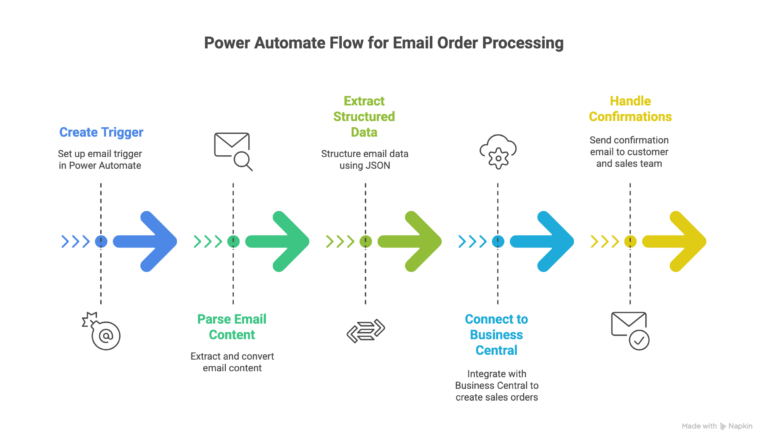
Building a basic flow that converts email orders into Business Central sales orders involves five key steps:
Step 1 – Create the trigger: Open Power Automate, select “Create from blank,” choose “When a new email arrives (V3)” for Outlook, configure folder monitoring for your shared mailbox, and add conditions like subject contains “Order” or emails from specific customer domains.
Step 2 – Parse email content: Add “Get email” action, use HTML to Text conversion for plain text processing, and extract key fields like customer reference from the sender and order content from the body.
Step 3 – Extract structured data: Add “Parse JSON” action to structure email content, define schema for expected order format (customer ID, items, quantities, prices), and use “Compose” actions to extract specific patterns like SKUs and numbers.
Step 4 – Connect to Business Central: Add “Dynamics 365 Business Central” connector, select “Create record (V3)” action, choose “salesOrders” entity, and map fields from parsed email to BC fields, including customer number, item numbers, quantities, and prices.
Step 5 – Handle confirmations: Add “Send an email (V2)” action, configure confirmation email back to customer including the Business Central-generated order number, and CC your sales team for visibility.
Pro Tip: Start with a manual trigger during testing rather than automatic email monitoring. This lets you perfect the logic before processing live orders.
Advanced Features and Optimization
Intelligent Error Handling
Implement multi-tier error handling to prevent silent failures.
- Level 1 validation errors (caught before Business Central submission) should log invalid data, queue orders for review, and notify processors with specific issues.
- Level 2 Business Central integration errors require retry logic with exponential backoff, checking for transient API issues versus data problems.
- Level 3 exception handling uses catch-all error handlers that log the complete context and create support tickets automatically.
Create notification content that includes order reference, specific error descriptions, suggested actions with links to manual entry, original email links, and processing timestamps.
Pro Tip: Create a Power BI dashboard that monitors automation health metrics in real-time. Track success rates, processing times, and error patterns to proactively identify issues.
Scaling for High Volume
When processing 200+ orders daily, implement batch processing by aggregating emails within 5-minute windows and processing as single Business Central API transactions. This reduces API calls by 60-80% compared to individual processing. Configure parallel processing with multiple flow instances running simultaneously, partitioned by customer or order size.
Cache customer and item lookups in flow variables to reduce redundant Business Central queries, refresh cache periodically, and use batch API endpoints when available. Consider Business Central performance tiers for API load and deploy multiple flows with load balancing for extreme volumes above 500 daily orders.
Realistic throughput expectations: Simple orders with 5-10 line items process in 20-30 seconds, complex orders with 20+ lines take 60-90 seconds, and optimized flows can process 100 orders in 45-60 minutes.
Best Practices and Security
Security Considerations
Email orders contain sensitive business information requiring protection. Ensure emails are transmitted via TLS, store extracted data in encrypted databases, use Azure Key Vault for credential management, and enable Business Central field-level encryption. Limit shared mailbox access to authorized personnel, use role-based access in Power Automate, and implement approval workflows for high-value orders.
Implement fraud detection for unusual order patterns like large quantities from new customers or sudden shipping address changes. Require secondary approval for orders outside normal parameters and monitor for duplicate submissions within short timeframes.
Real Success Stories
A regional industrial supply distributor serving 800+ contractor accounts received 250-400 daily email orders. Their six-person order entry team spent 35+ hours daily on manual entry with a 5-7% error rate. After implementing Power Automate flows with AI Sales Order Agent for format variations, processing time dropped from 5 minutes to 90 seconds per order (70% improvement), error rates decreased to 1.2%, and they redeployed 4 staff members to customer service roles. ROI was achieved in 3.7 months.
Conclusion
Manual email order processing quietly drains time, money, and competitive advantage. While your team spends hours on data entry, competitors are automating orders, reducing errors, and scaling faster, without adding headcount. Email order automation in Business Central delivers immediate impact, but only when implemented correctly.
You can spend months figuring it out alone, or partner with experts who’ve already solved these challenges across industries. Our certified Business Central team delivers tailored automation in weeks, not months, with measurable efficiency gains within 90 days.
Warning: Delaying automation while competitors implement it widens the operational efficiency gap. Every month of manual processing represents lost productivity you can never recover.
FAQ
How accurate is automated entry?
Properly configured automation achieves 95-99% accuracy versus 92-95% for manual entry. The key advantage: automated errors are systematic and fixable, while human errors are random and harder to eliminate.
Can it handle non-standard email formats?
Yes. Power Automate works best with consistent formats (80-90% automation), while AI Sales Order Agent addresses unstructured emails using natural language processing (70-85% automation after training). Remaining orders queue for human review.


Related Articles