
Greetings! I'm Aneesh Sreedharan, CEO of 2Hats Logic Solutions. At 2Hats Logic Solutions, we are dedicated to providing technical expertise and resolving your concerns in the world of technology. Our blog page serves as a resource where we share insights and experiences, offering valuable perspectives on your queries.
Drowning in invoice emails?
Every day, your inbox fills up with vendor invoices, PDFs, scanned images, and sometimes just forwarded emails with no clear format. And every single one needs manual data entry into your ERP system. You copy invoice numbers, match line items, double-check totals, and pray you didn’t transpose any digits.
It’s exhausting. It’s error-prone. And frankly, it’s 2026; there has to be a better way.
Email-to-ERP invoice automation eliminates 70-90% of manual invoice processing work, cuts approval times in half, and reduces errors to near zero. You’re about to discover exactly how it works and how to set it up in your business, without needing a development team or a massive budget.
Let’s fix your invoice chaos once and for all.
Why Manual Invoice Processing Is Killing Your Productivity
Picture this: Your team starts each morning opening 50-100 invoice emails. Each invoice takes 3-5 minutes to manually enter into SAP, Odoo, or Business Central.
That’s 4-8 hours of pure data entry. Every. Single. Day.
The real costs stack up fast:
- Time drain: Manual entry consumes 60-70% of the team’s capacity
- Error rates: Human data entry has 1-5% error rates, creating costly reconciliation issues
- Delayed payments: Slow processing means missed early payment discounts (typically 2% of invoice value)
- Compliance risks: Paper trails for GDPR, SOC 2, or regional regulations become nightmares
- Scalability limits: Your team can’t grow invoice volume without hiring more people
And here’s the kicker: Most businesses handle 200-500% more invoice volume today than they did five years ago, especially in e-commerce and B2B manufacturing.
Your current process won’t scale.
How Email-to-ERP Invoice Automation Works
The good news? Modern automation doesn’t require custom coding or expensive consultants. Here’s the complete workflow in simple terms:
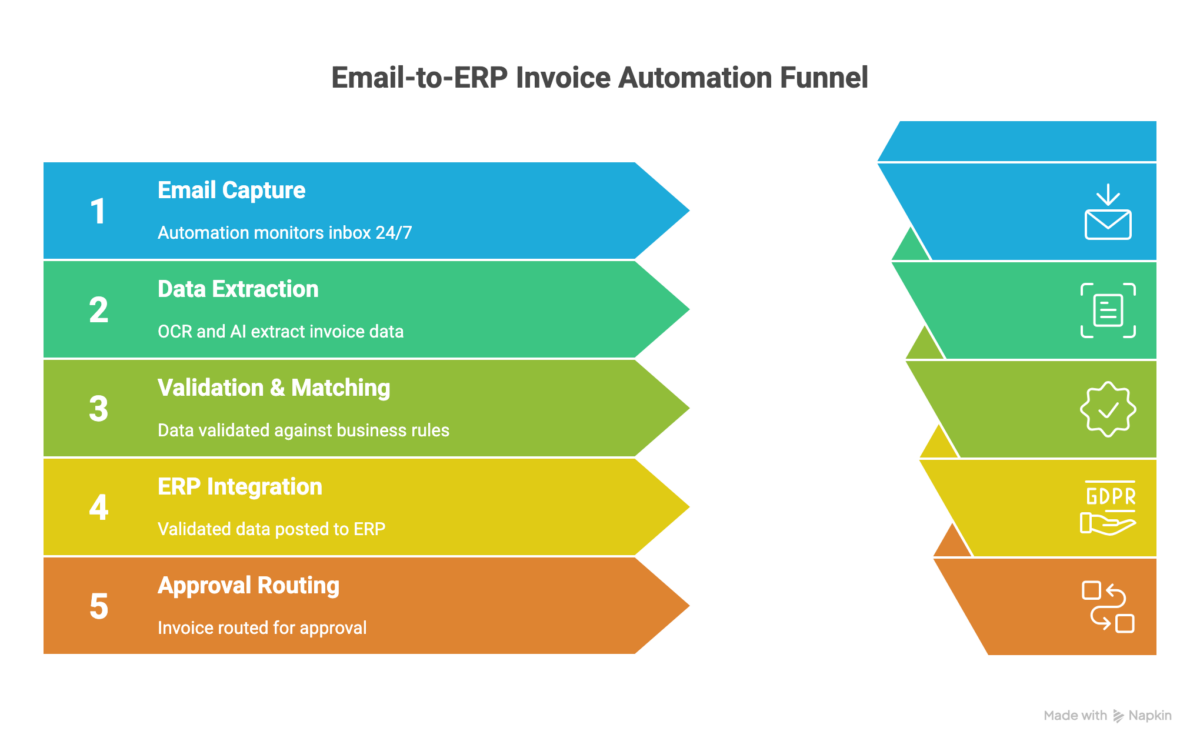
Step 1: Email Capture
Your vendors send invoices to a dedicated email address. An automation platform monitors this inbox 24/7, capturing every invoice the moment it arrives.
Step 2: Data Extraction
OCR (Optical Character Recognition) and AI parsing engines read the invoice, whether it’s a PDF, scanned image, or even text in the email body. The system identifies and extracts invoice numbers, vendor details, dates, line items, tax information, and totals.
Modern automation tools achieve 95-98% accuracy rates, even with varied invoice formats from different vendors.
Step 3: Validation & Matching
The system validates extracted data against your business rules. Does this vendor exist in your ERP? Do the line items match a purchase order? Is the total within approval thresholds? Any exceptions get flagged for human review, but typically, 80-90% of invoices pass straight through.
Step 4: ERP Integration
The validated data posts directly into your ERP system as a new invoice record. For SAP, this creates a vendor invoice document. For Odoo, it creates a vendor bill. For Business Central, it generates a purchase invoice.
Step 5: Approval Routing
Based on your configured workflows, the invoice routes to the appropriate approver(s). Notifications are sent out, approvals are processed (often via mobile app), and the invoice is moved to payment processing, all without requiring you to check your inbox.
ERP-Specific Integration: What You Need to Know
Not all ERPs handle automation the same way. Here’s what matters for the most common systems.
SAP
SAP offers robust integration capabilities but requires careful configuration. Your automation must map vendor names to existing SAP vendor master records, and SAP requires exact vendor numbers and GL account codes. Plan for 3-4 weeks of configuration and testing.
Common challenge: SAP won’t accept an invoice if the vendor doesn’t exist in master data. Your automation needs to handle this by routing unknowns to manual review.
Odoo
Odoo’s open architecture makes it automation-friendly with well-documented APIs. Its flexible data model means you can customize invoice fields without breaking integrations. Many automation platforms have native Odoo connectors for easier setup.
Microsoft Business Central
Business Central’s modern cloud platform makes it one of the easiest ERPs for automation. Native cloud hosting means no VPN or firewall configurations needed; your automation can connect from anywhere. Plan for 2-3 weeks of setup and testing.
Tip: Start with a hybrid approach. Automate 80% of invoices (standard formats from regular vendors) and manually process the remaining 20% (one-off vendors, unusual formats) until your system learns them.
Set Up Email-to-ERP Automation
You don’t need developers or consultants to get started. Here’s how to configure automation step by step.
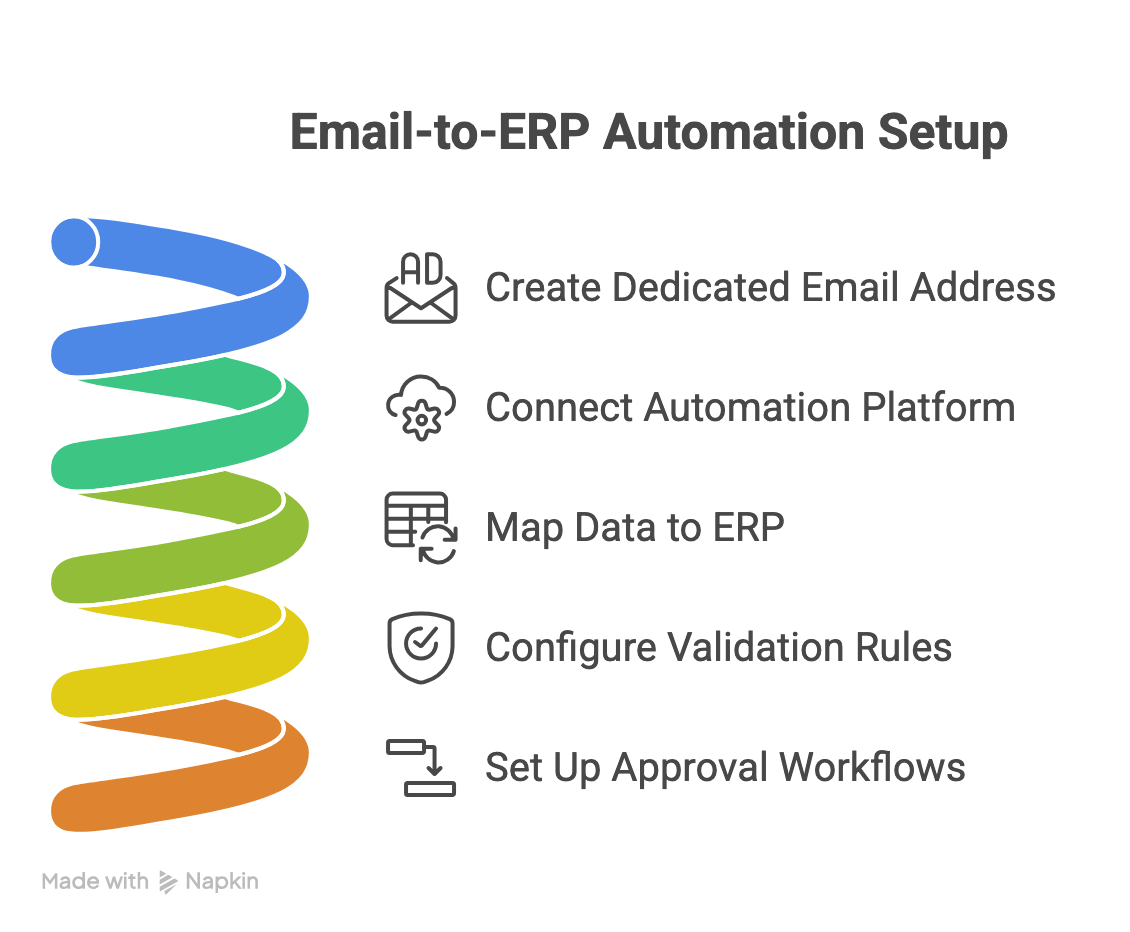
Step 1: Create a Dedicated Invoice Email Address
Set up [email protected] and instruct vendors to send all invoices there. A dedicated inbox keeps invoice automation separate from other business emails and makes troubleshooting easier.
Step 2: Connect Your Automation Platform
Sign up for an invoice automation platform that fits your volume and budget. Look for pre-built invoice templates, support for your specific ERP system, clear pricing, and a free trial period to test with real invoices.
Configure email monitoring, define data extraction rules, and test with 5-10 real invoices from different vendors. Adjust rules until extraction accuracy hits 95%+.
Step 3: Map Data to Your ERP
Configure how parsed invoice fields map to your ERP’s required fields. Critical mappings include vendor name to ERP vendor master record, invoice date to posting date, line items to GL accounts, and tax amounts to tax codes.
Send 20 test invoices and verify every field lands correctly in your ERP. Check that totals calculate properly and tax handling matches your requirements.
Step 4: Configure Validation Rules
Set up automated checks before posting to ERP: invoice total must match the sum of line items, vendor must exist in ERP master data, invoice number must be unique, and amounts must be within expected ranges.
When validation fails, route to a review queue with the specific error flagged so your team has visibility into what needs attention.
Step 5: Set Up Approval Workflows
Configure routing rules based on your business policies.
For example, invoices under $1,000 auto-approve, $1,000-$10,000 route to department manager, over $10,000 require CFO approval, and new vendors always require manual review.
Ready to eliminate invoice processing chaos?
Common Challenges and How to Solve Them
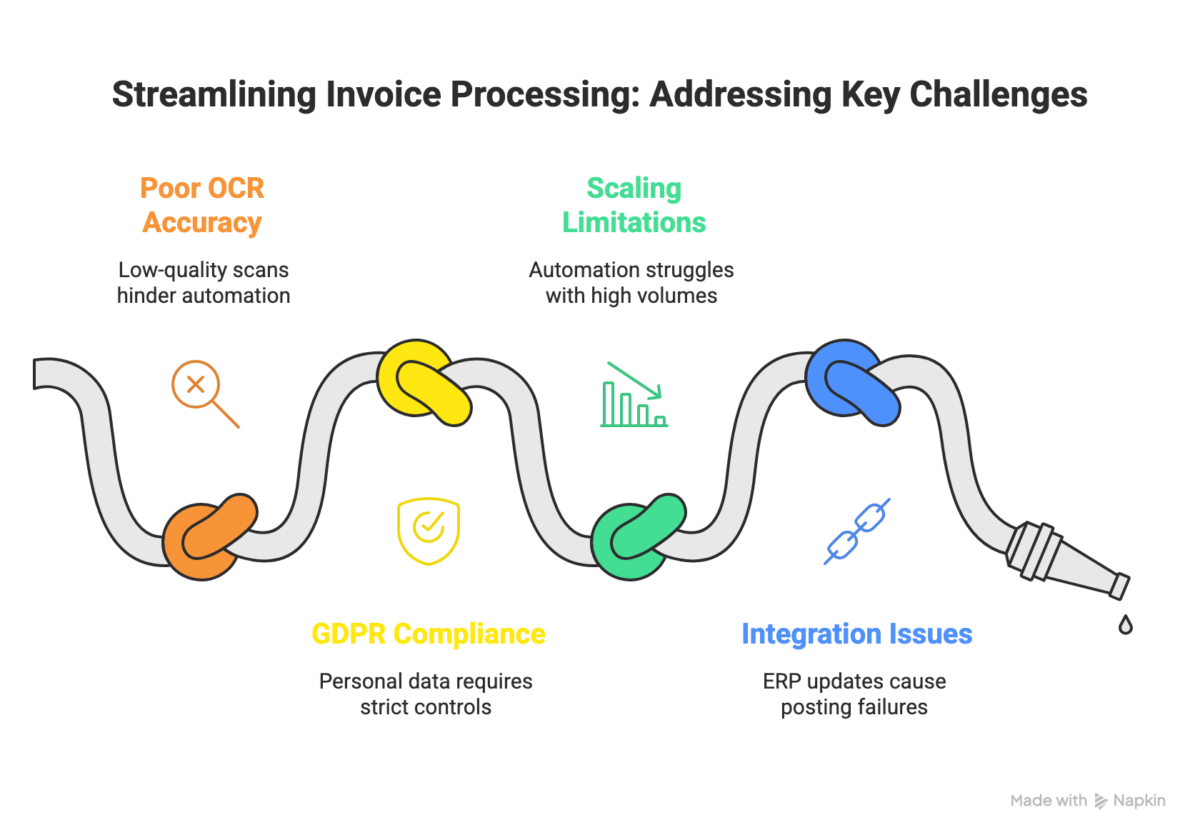
Challenge 1: Poor OCR Accuracy on Scanned Invoices
Problem: Vendors send low-quality scans or photos. OCR struggles with image quality and skewed text.
Solutions: Choose platforms with advanced OCR engines, request vendors send digital PDFs, and route persistent problem vendors to manual review automatically. Even with top-tier OCR, expect 2-5% of invoices to need manual intervention, still vastly better than 100%.
Challenge 2: GDPR and Compliance Requirements
Problem: Invoices contain personal data that must comply with GDPR, SOC 2, or regional regulations.
Solutions: Choose platforms with relevant certifications, ensure data processing agreements are in place, configure data retention policies, and enable encryption for data in transit and at rest.
Challenge 3: Scaling Beyond Initial Volumes
Problem: Automation works for 200 invoices/month but struggles at 2,000 invoices/month.
Solutions: Monitor processing times monthly, set up alerts for delays, and plan capacity upgrades before hitting 80% of platform limits. Enterprise-grade platforms handle 10,000+ invoices/month without issues.
Challenge 4: Integration Breaks After ERP Updates
Problem: ERP updates cause invoice posting failures.
Solutions: Subscribe to your ERP vendor’s release notes, test integrations in sandbox environments before production updates, and build error handling that emails your team when posting fails.
Tip: Before committing to a platform, run a 2-week pilot with 50 real invoices. Measure accuracy, time savings, and error rates. If it doesn’t hit 90% straight-through processing, adjust your approach before scaling.
Real-World Results
A mid-sized B2B e-commerce company (annual revenue: $15M) automated 800 monthly vendor invoices.
Results after 6 months:
- Time savings: 120 hours/month freed up
- Faster processing: 1-day average from receipt to approval (down from 4-5 days)
- Error reduction: Disputes dropped from 4% to 0.3%
- Cash flow improvement: Early payment discounts captured increased by 40%
- ROI: $6,000/month saved vs $600/month platform cost = 10x ROI
Implementation took just 3 weeks, with 80% automation rate in month one, reaching 90% by month three.
Conclusion
Manual invoice processing is costing you more than you think. It’s not just the obvious hours spent on data entry; it’s the errors, the missed discounts, the inability to scale, and the team burnout.
Email-to-ERP invoice automation solves all of this. You can achieve a 70-85% reduction in processing time, near-zero error rates, 80-90% of invoices fully automated, and ROI in 3-6 months.
The technology is proven. The only missing piece is the decision to stop doing manually what technology can do better.
Every month of delay is another 20-40 hours of wasted manual work, another batch of missed early payment discounts, another round of preventable errors.
FAQ
Can we automate invoices in multiple languages or currencies?
Yes, most enterprise automation platforms support multi-language OCR (including Arabic, Chinese, and European languages) and multi-currency processing. You'll need to configure currency conversion rules and ensure your ERP can handle foreign currency posting. GCC businesses frequently process invoices in both English and Arabic with proper platform selection.
What happens to invoices that fail automatic processing?
Failed invoices route to an exception queue where your AP team can review them. The system flags the specific issue, missing vendor, validation error, OCR failure, etc., so staff know exactly what needs correction. Most platforms allow you to process these exceptions manually within the same interface, then feed the corrections back to improve future automation.
What if a vendor sends invoices in an unusual or inconsistent format?
AI-powered platforms learn over time and can adapt to vendor-specific formats. For persistently problematic vendors, you have three options: (1) create custom parsing rules for that vendor, (2) request the vendor change to a standard format, or (3) automatically route their invoices to manual processing. Most businesses find 80-90% of vendors work fine with standard automation.

Related Articles